Growth is exciting for a courier business, but it also exposes weaknesses that were easy to overlook when the team was smaller. With a handful of drivers, informal processes usually work. Everyone knows who is responsible for what, communication happens quickly, and managers can keep an eye on most of the operation themselves. But as order volumes increase, the team grows, and more customers need support, those same processes quickly become difficult to manage.
At that point, adding more people is not always the answer. Courier companies need clear roles, defined responsibilities, and the right level of system access for each person on the team.
A dispatcher should be able to manage deliveries without changing financial settings. A finance employee needs access to payments and invoices, but not to live dispatch tools. A warehouse operator needs to scan and update shipments without touching company-wide administrative settings.
This is where role-based team structures become important.
In this guide, we’ll look at the key roles within a courier company, what each team is typically responsible for, and how to set up those roles step by step with role-based access in Onro.
Key Roles in a Courier Company
A scalable courier operation needs well-defined roles, with no overlap or confusion, and limited access to the system for each of them.
The important thing is not how many people you have. It is making sure everyone understands their responsibilities and has access to the tools they actually need.
Here are the most common roles in a growing courier operation.
Admin / Owner
The admin or owner typically has the broadest level of access across the courier platform.
This role is responsible for the overall business and usually has visibility into both operational and administrative functions, including:
- Platform configuration
- Business settings
- Pricing structures
- Financial management
- Team access control
- Service expansion decisions
Operations Manager
The operations manager keeps the delivery operation running smoothly day to day.
While the owner may focus on the wider business, the operations manager is usually closer to what is happening on the ground: order volumes, driver performance, dispatch efficiency, and service quality.
Typical responsibilities include:
- Monitoring order volume
- Managing pricing updates
- Reviewing customer feedback
- Launching new delivery services
- Supervising drivers and dispatchers
- Analyzing operational reports
Dispatcher
Dispatchers are at the center of daily delivery operations. They coordinate orders, drivers, and routes, and they often have to make decisions in real time when something does not go according to plan.
A dispatcher may need to react to a delayed driver, a failed delivery, a last-minute order, or a route change while keeping the rest of the operation moving. Their responsibilities typically include:
- Assigning orders to drivers
- Managing routes
- Handling delivery exceptions
- Monitoring live driver activity
- Keeping the operation efficient in real time
Because dispatchers work directly with live operations, they need quick access to the tools they use most. At the same time, they generally do not need access to sensitive financial or administrative settings.
Driver Support / Operator
Driver support teams manage the relationship between the courier company and its drivers.
Their work often begins before a driver completes a first delivery. They handle onboarding, document verification, account approvals, and ongoing driver questions.
Typical responsibilities include:
- Registering drivers
- Verifying driver information
- Supporting drivers with issues
- Managing account approvals
- Monitoring driver activity
A dedicated driver support function becomes more useful as the fleet grows, because managers and dispatchers can focus on operations instead of handling every driver request themselves.
Warehouse / Hub Operator
Hub operators handle the physical movement of parcels inside the warehouse. A tidy warehouse operation reduces delays and misplaced packages.
Their tasks include:
- Scanning shipments
- Sorting packages
- Managing inbound and outbound operations
- Updating shipment statuses
- Keeping inventory flow accurate
Small mistakes at this stage create problems later in the delivery process, so accurate scanning and status updates matter a lot here.
Accountant / Finance
The finance team is responsible for the financial side of the courier operation.
Unlike dispatchers or operations managers, finance employees generally do not need to manage live deliveries. Their focus is on making sure payments, invoices, payouts, and transactions are accurate and properly recorded.
Responsibilities may include:
- Monitoring transactions
- Managing customer billing and invoices
- Processing driver payouts
- Financial reporting
Separating financial access from operational access also limits unnecessary exposure to sensitive business information.
Customer Support
Customer support keeps communication between the courier company and its customers running smoothly.
When a delivery is delayed, a shipment cannot be located, or a customer simply wants an update, support teams are often the first point of contact.
Their responsibilities can include:
- Resolving delivery issues
- Handling customer inquiries
- Managing complaints
- Tracking shipment problems
- Communicating delivery updates
Support teams need enough visibility to understand what is happening with an order, but they generally do not need access to company-wide financial or configuration settings.
Sales / Business Development
Sales and business development teams focus on bringing in new customers and growing existing business relationships.
For courier companies, this may mean working with retailers, e-commerce businesses, restaurants, marketplaces, or any organization that needs regular delivery services.
Their responsibilities may include:
- Acquiring new business clients
- Managing partnerships
- Registering business customers in the system
- Expanding into new markets
- Supporting long-term account relationships
Giving sales teams access to business account information helps them work efficiently without giving them unnecessary access to dispatch or financial operations.
Setting Up Role-Based Access for Courier Operations in Onro
Defining responsibilities is only the first part of building a scalable team structure.
The next question is: how do you make sure people only have access to the parts of the system they need?
Onro’s Users and Groups feature lets courier companies organize team members into groups and assign permissions based on their responsibilities. Instead of giving every employee the same level of access, you create a different permission structure for each role. This follows the principle of least privilege, which NIST describes as granting each user only the minimum access they need to perform their function.
This makes the platform easier to manage as the team grows and reduces unnecessary access to sensitive or operational settings.
How users and groups work together
There are two building blocks.
A group is a reusable set of permissions. It decides which Onro panels its members can log into (the Dispatcher panel, the Scanner App, the Admin Center, or any combination) and which actions they can perform inside each one. You can create as many groups as you need, one for each role.
A user is an individual login for one team member, with a username, password, and profile details. Every user must belong to a group, and the group defines what they can do. On top of that, each user can be limited to specific services, driver teams, zones, vehicle types, and warehouses, which defines the part of the operation they are responsible for.
The group answers “what can this person do?” The user’s scope answers “where can they do it?”
Step 1: Create a group for each role
In the Admin Center, go to:
Admin Center → Settings → Users & Groups → Groups → New
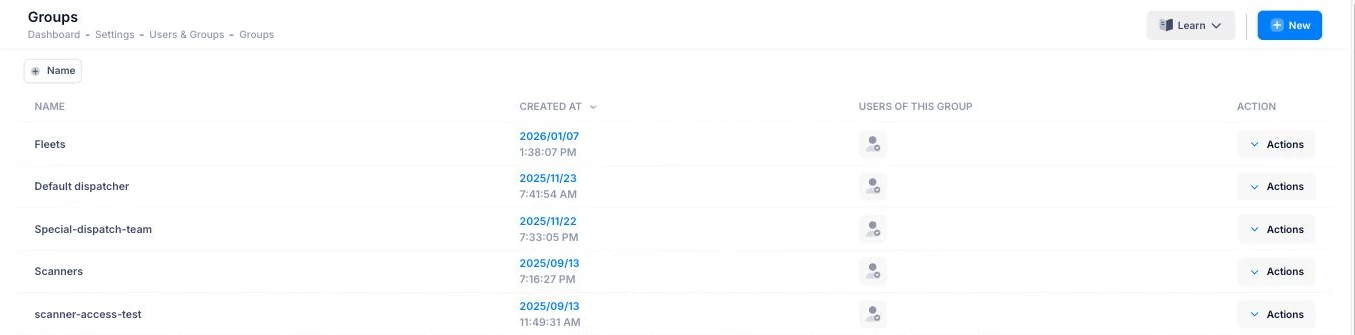
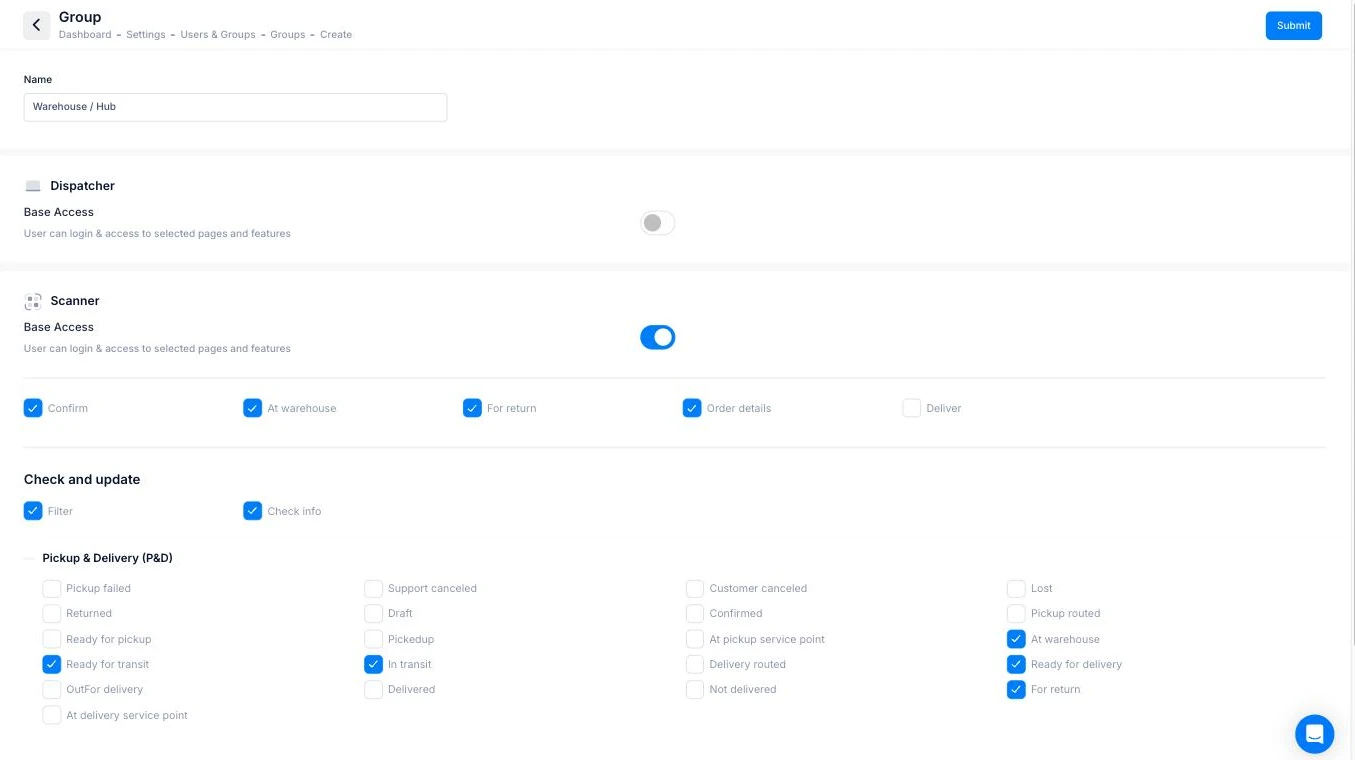
Give the group a clear name that matches the role, such as “Dispatchers,” “Warehouse / Hub,” or “Finance.” The form then shows three sections, each with its own Base Access toggle:
- Dispatcher: access to the live Dispatcher panel
- Scanner: access to the Scanner App used in warehouses and hubs
- Admin panel: access to the Admin Center, section by section
Turn on only the panels this role needs. The permissions for each panel appear once its toggle is on.
Step 2: Choose what the group can do
For the Dispatcher panel, permissions are split into two areas. The first is actions: New order, New route, Route plan, Edit address, Edit price, Edit price after done, Edit route info, Edit route status, Reorder stops, and Route optimize. The second is Edit status, where you choose, per order type (On-demand, Pickup & Delivery, Pickup only, Delivery only), which statuses members of this group are allowed to move an order to.
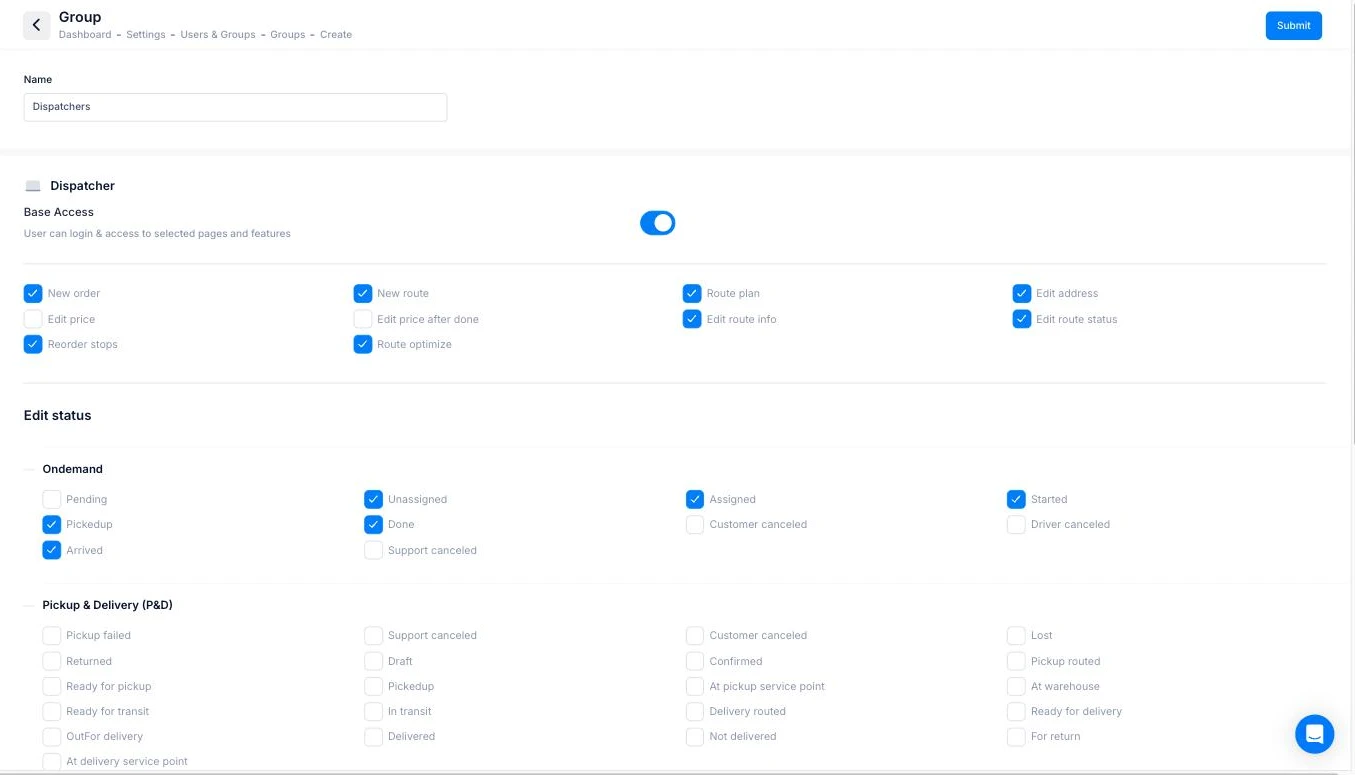
In the example above, the dispatcher group can create orders, plan and optimize routes, and edit addresses, but Edit price and Edit price after done stay off. Pricing decisions remain with the operations manager.
For the Scanner app, you control which scanning actions are available (Confirm, At warehouse, For return, Order details, Deliver), the Check and update tools (Filter, Check info), and which statuses scanner users can set on each order type. Only the options you allow are shown to them in the app.
For the Admin panel, you enable or disable access section by section, such as Dashboard, Orders, Drivers, Customers, Accounting, Messages Box, Support, and the individual settings areas. Group members only see the sections you select.
When the permissions look right, click Submit.
Step 3: Create users and assign their scope
Next, go to:
Admin Center → Settings → Users & Groups → Users → New
Enter the username, password, and name, then choose the Group the person belongs to. After that, narrow down their scope with the Services, Teams, Zones, Vehicle Types, and Warehouses fields.
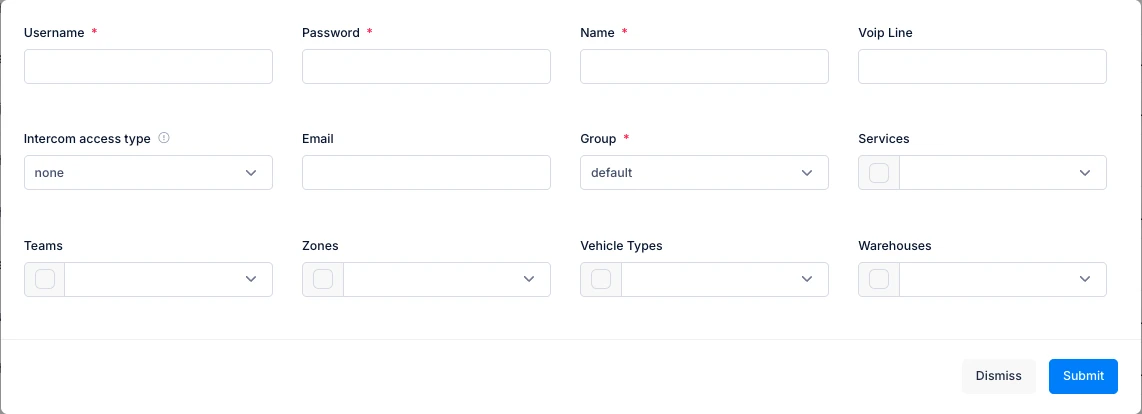
This is where scoping becomes useful for a growing company. Consider a courier business running two hubs, one in London and one in Manchester. Both hub teams can share the same “Warehouse / Hub” group, but each operator is assigned only their own warehouse. A dispatcher covering the north can be limited to the Manchester zone and its driver team. Users cannot view, manage, or create orders outside what you assign to them.
How Each Role Maps to Onro Permissions
Here is how the roles from the first section can be structured in Onro.
Admin / Owner
Admins and owners generally need the broadest access, because they are responsible for the overall platform and the business behind it.
Depending on the company structure, their group may include:
- Base access to all three panels: Dispatcher, Scanner, and Admin panel
- Every Dispatcher action, including price editing
- All Admin Center sections, including Accounting, Pricing & Rates, and Users & Groups
Since these permissions affect every part of the business, admin access should be limited to the few people who really need it.
Operations Manager
Operations managers need broad visibility into the delivery operation, but not necessarily unrestricted access to every administrative or financial feature.
Their group may include:
- Dispatcher access with all actions, including Edit price
- Admin panel access to Dashboard, Orders, and Drivers
- Pricing & Rates and service settings, if pricing decisions sit with operations
The exact setup depends on whether financial and commercial decisions sit with the operations team or with senior management.
Dispatcher
Dispatchers need access to the tools that help them manage deliveries in real time.
Their group typically focuses on:
- Dispatcher base access
- New order, New route, Route plan, and Route optimize
- Edit address, Edit route info, Edit route status, and Reorder stops
- Edit status for the order statuses they handle day to day
The Admin panel and price editing can stay off, while dispatchers still have everything they need to keep deliveries moving. For larger teams, scope each dispatcher to their own zones or driver teams.
Driver Support / Operator
This group focuses on driver management. Access to pricing, reports, and financial tools is usually unnecessary for this role.
Permissions often include:
- Admin panel access to Drivers, for registering drivers, reviewing documents, and updating driver information
- Messages Box, for communicating with drivers
- Support, for handling driver support requests
Assign them to the driver teams they look after with the Teams field.
Warehouse / Hub Operator
Hub operators mainly work within warehouse workflows. Keeping their access focused also keeps the system simpler for them.
Their group may include:
- Scanner base access, with the Dispatcher panel and Admin panel turned off
- Confirm, At warehouse, For return, and Order details
- Filter and Check info for looking up parcels
- Statuses such as At warehouse, Ready for transit, In transit, and Ready for delivery
A user with only Scanner access cannot log into the Dispatcher panel, which is exactly what you want for hub staff. If you run several hubs, assign each operator to their own warehouse. You can read more about how hubs connect in our guide to multi-warehouse management.
Accountant / Finance
Finance teams usually need access to payment-related modules only. Dispatch controls are generally turned off for this role.
Permissions often include:
- Admin panel access to Accounting, which covers invoices, withdrawals, and financial transactions
- Invoicing & Finance settings, if they manage billing cycles and invoice templates
- No Dispatcher or Scanner access
Customer Support
Support teams need visibility into customer-facing delivery information. They usually don’t need financial or configuration settings.
Typical permissions include:
- Admin panel access to Orders and Customers, for checking order status and customer details
- Support and Messages Box, for handling requests and communicating with customers
- Dispatcher base access with most actions left unchecked, if the team needs to follow live orders without changing them
Sales / Business Development
Sales teams need business account tools. Dispatch and operational permissions are usually unnecessary here.
Permissions may include:
- Admin panel access to Customers, for registering new business clients and managing their accounts
- Dashboard, for viewing account activity and client performance
- No Dispatcher, Scanner, or Accounting access
How Role-Based Teams Help Courier Companies Scale
Role-based operations become more valuable as courier businesses grow.
Without structure, responsibilities start to overlap. Dispatchers edit settings they shouldn’t touch. Support teams see financial data they don’t need. Managers spend more time fixing mistakes than improving operations.
Role-based access solves a lot of that. It helps courier companies:
- Reduce operational errors
- Improve accountability
- Simplify onboarding
- Protect sensitive information
- Keep workflows organized as teams expand
Onboarding is a good example. When a new dispatcher joins, you don’t configure their permissions from scratch. You create their user and pick the “Dispatchers” group. Assign their zones and they start the day with the same setup as everyone else on the desk.
More importantly, it lets businesses scale without losing visibility or control. Instead of depending on individuals to remember processes, the system itself enforces the operational structure. That matters most once delivery volume starts climbing quickly.
There is also a cost side. Because Onro is priced per delivery rather than per seat, with unlimited users on every plan, adding a new role or a new team member does not add to your software bill.
Conclusion
Scaling a courier company is rarely just about adding more drivers or handling more deliveries.
Growth creates complexity, and complexity needs structure. Clear operational roles, combined with controlled system access, make it easier for teams to stay organized as the business expands.
Onro was built with this kind of operational scale in mind. From dispatching and driver management to role-based permissions and enterprise workflows, the platform helps courier companies grow without losing control of their operations. For growing teams, a clear access structure is less of a nice-to-have and more of an operational requirement.

Try Onro for Free
Get your free access to the Onro Fully White-label Courier Software.
FAQ
Role-based access means each team member gets system permissions based on their job, not full access to everything. A dispatcher can assign orders and manage routes, while finance handles invoices and payouts, and neither can change the other’s settings.
In the Admin Center, go to Settings → Users & Groups → Groups and click New. Name the group, turn on Base Access for the panels it needs (Dispatcher, Scanner, or Admin panel), pick the permissions, and click Submit.
Yes. When you create or edit a user, you can restrict them to specific services, teams, zones, vehicle types, and warehouses. They can’t view, manage, or create orders outside that scope.
Yes. Give their group Scanner base access only. A user with only Scanner access can’t log into the Dispatcher panel, and they only see the scanning actions and statuses you allow.
No. Onro is priced per delivery, not per seat, and every plan includes unlimited users, so you can add roles and team members as you grow.