Onro’s October 2026 release lets drivers assign Pickup & Delivery orders to themselves with a scan and lets routes start or end at a driver’s saved address, with two new controls for customer messages on top.

Key Takeaways

🚀 What’s New in October 2026?
Starting October 11, drivers can assign Pickup & Delivery orders to themselves by scanning them, and routes can start or end at a driver’s saved address. Two communication updates also give you more control over the messages customers receive. The dispatcher panel now also allows you to export orders.
Scan to Pickup & Out for Delivery for P&D Orders
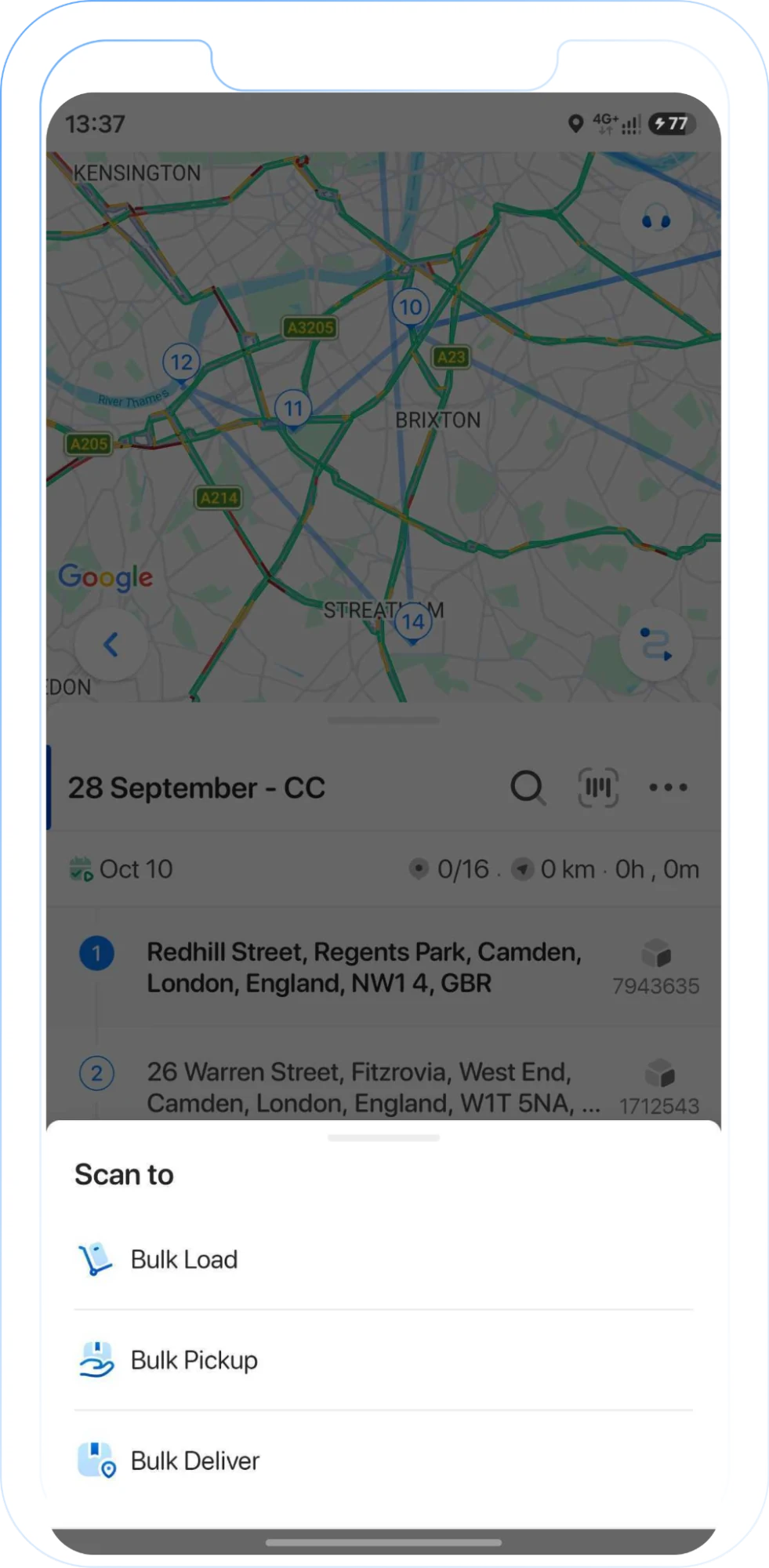
Drivers can now assign Pickup & Delivery orders to themselves by scanning them in the Driver app. This option works alongside manual assignment by dispatchers and replaces the manual confirmation button for pickups. When the setting is on, two bulk actions in the driver’s route details can be used for assignment:
- Bulk pickup: Besides confirming order pickups, this button now lets the driver scan confirmed orders that aren’t assigned to them. Scanned orders are assigned to the driver and moved to Picked up.
- Bulk load: Besides loading orders for delivery, this button now lets the driver scan orders at the warehouse that aren’t assigned to them. Scanned orders are assigned to the driver and moved to Out for delivery.
Both options are disabled by default. You can turn them on in the driver’s working type settings.
Driver Address in Route Creation/Planning
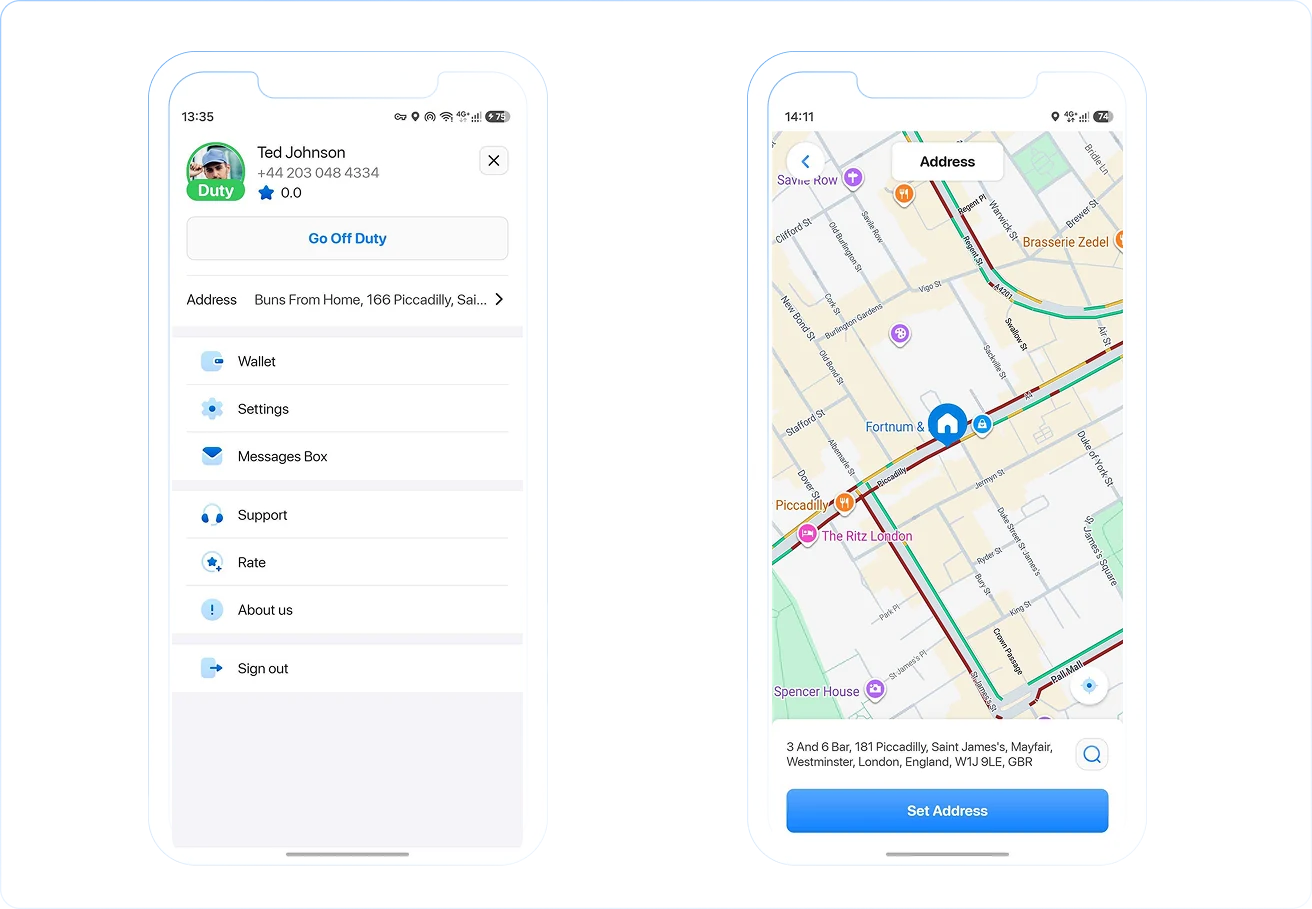
Drivers can now add or edit their address in their profile, and you can use that saved address as the start or end point of a route. This saves time when drivers begin or finish their day at home.
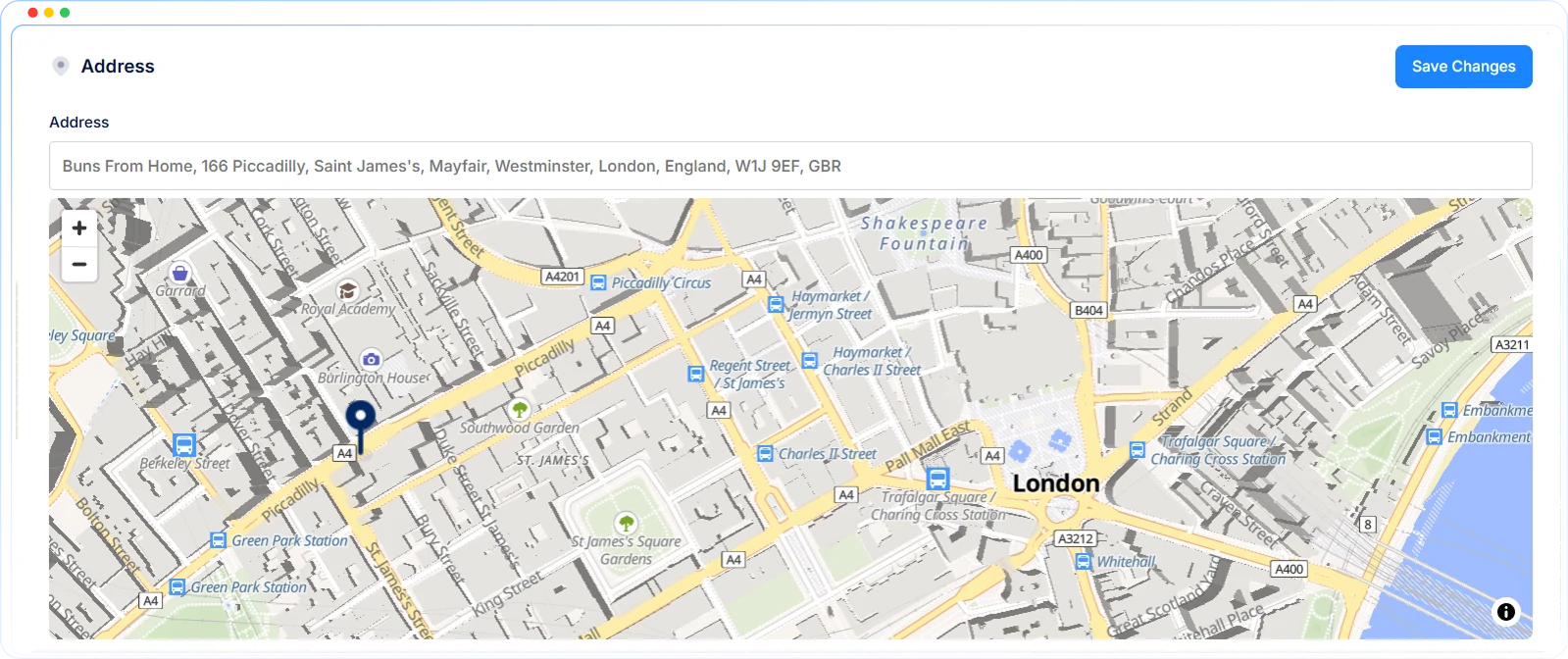
The driver address is now linked to the map, so the same address field is used everywhere. Drivers can also edit their address from their profile in the Driver app.
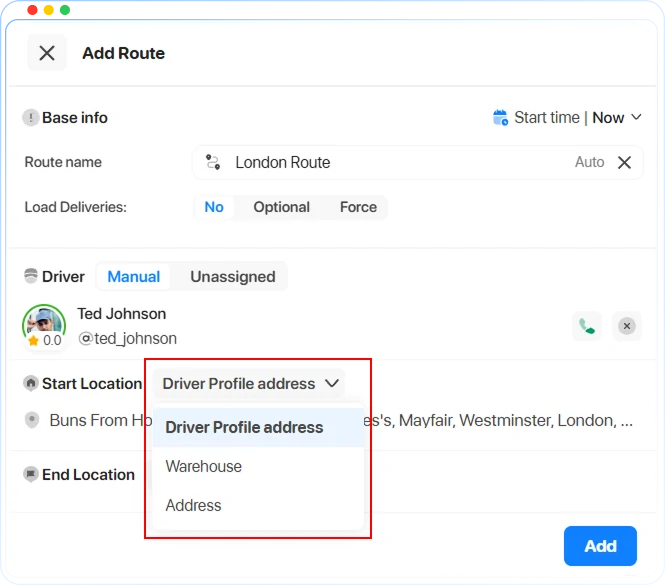
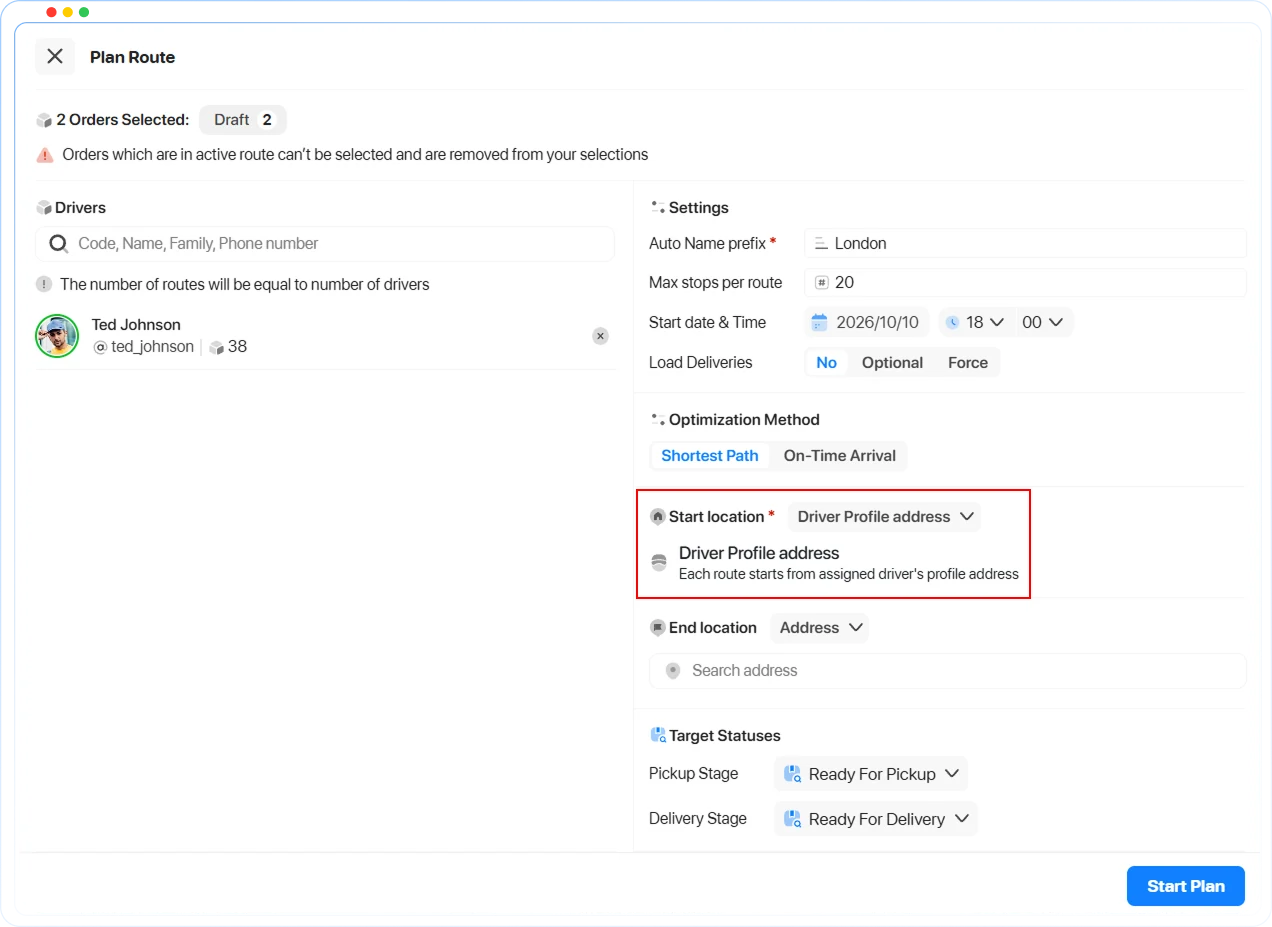
When you create or plan a route, choose Driver Profile address as the start or end location.
Communication Update
Two new options give you more control over the messages your customers receive.
- Driver info tags: You can now add driver info tags to Pickup & Delivery orders. Use them in customer messages to share driver details automatically, so customers know who is coming and your team sends fewer manual updates.
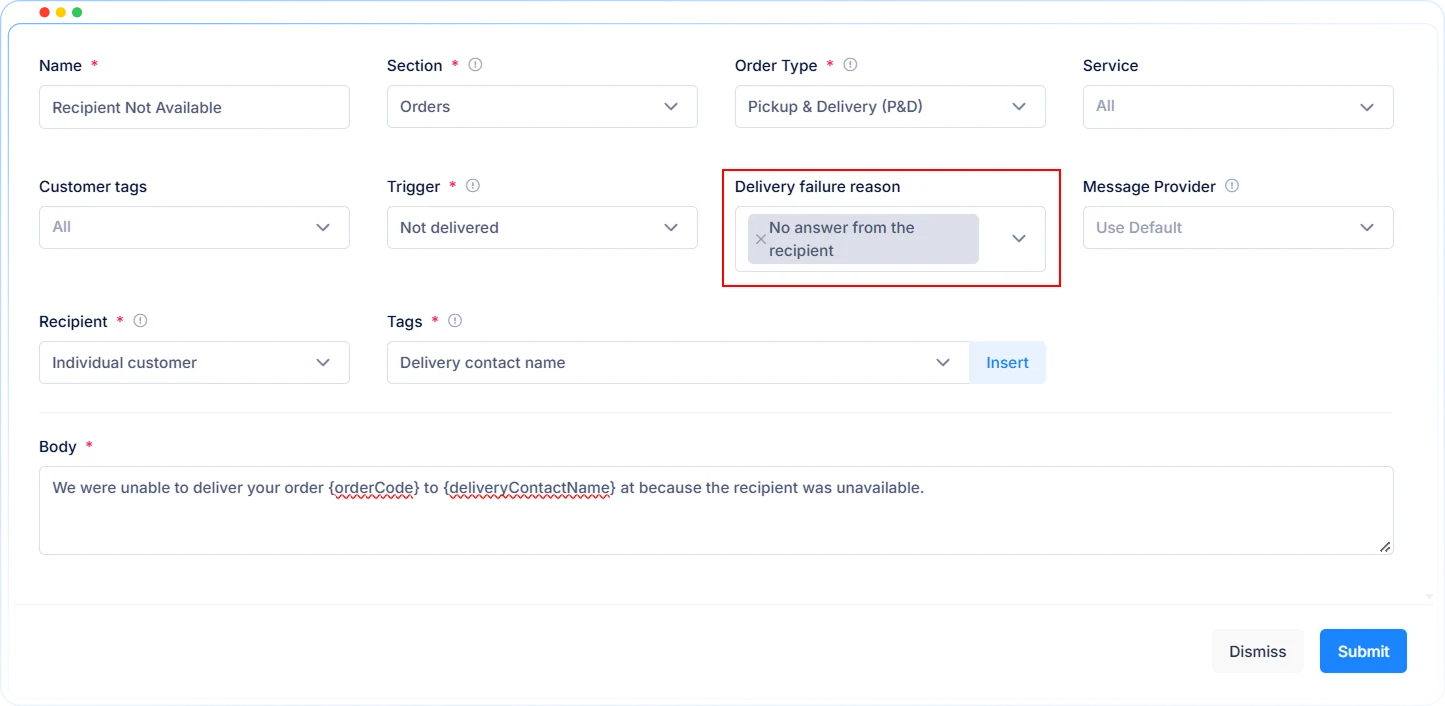
- Failure reason filter: You can now filter the Not delivered trigger by failure reason and send a message only for the reasons you choose. For example, notify customers when no one was available and skip other cases. This gives you more control over what customers hear about failed deliveries.
Export Orders from the Dispatcher Panel
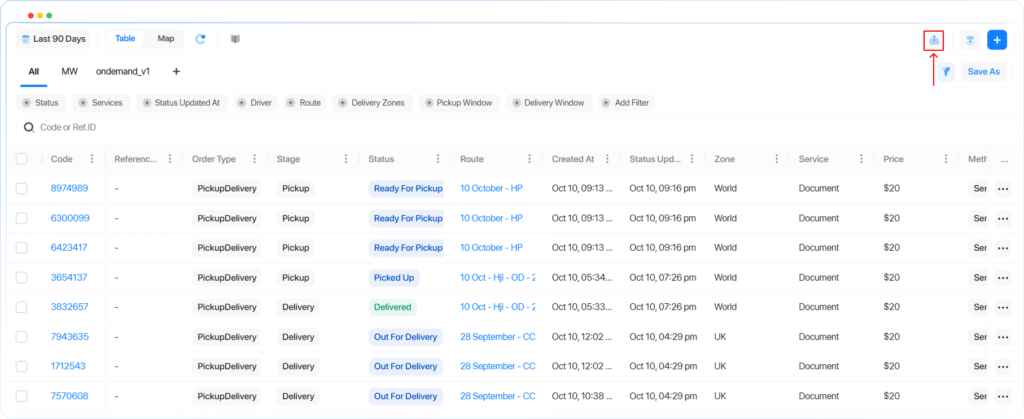
Exporting is no longer limited to the Admin Center. A new button in the P&D order table in the Dispatcher Panel lets you export orders directly from the table.
Operators and dispatchers can filter orders in the Dispatcher Panel, generate a CSV record of all the filtered orders, and download the table orders in a few clicks.
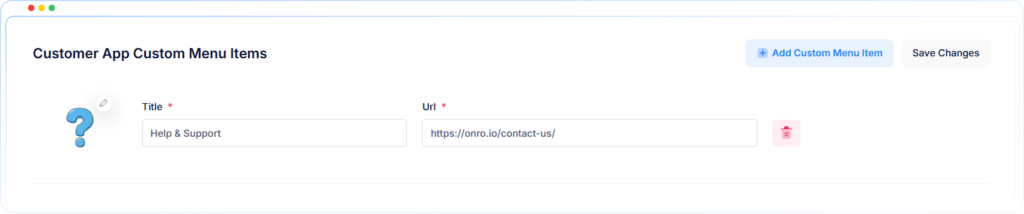
Customer App Menu Items
You can now add custom items to the customer profile menu for the customer app. Use them to give your customers quick access to the links and information that matter to your business.
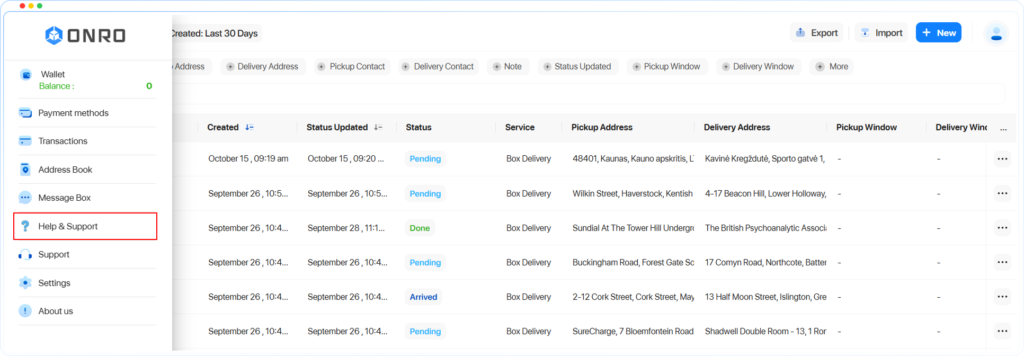
Support Chat URL for Customer Apps
A support chat URL field is now available for customers, just like the one in the driver app. You can add a support chat to the support menu in the customer apps and the web app. Customers can reach your team right from their profile.
✨ Improvements
- Address book notes for drivers now appear in the address details field of P&D orders. This works in the Dispatcher Panel and Web App.
- Distances in miles and km now show one decimal place in the mobile apps.
- The Dispatcher Panel now uses the statuses edited in the Admin Panel’s language section.
- Searching orders by ID, drivers and routes now starts after three characters and a short delay. This matches address autocomplete in the Dispatcher Panel and Web App.
- Links in text and custom fields are now clickable. This works in the tables and order details of the Dispatcher Panel and Web App.
- The promo code option is no longer shown for P&D orders in the iOS app. Promo codes only work for on-demand orders.
🐞 Fixed Bugs
- Fixed an issue where the business customer status update webhook sometimes did not work.
- Fixed an issue where a business’s default pickup address note did not show in the Dispatcher Panel or driver app.
- Fixed an issue where editing a customer with a dash (-) in the username failed with an error.
- Fixed an issue where editing a route’s name never finished loading. Editing the date and time also showed “Something went wrong”.
- Fixed an issue where orders scheduled for today showed yesterday’s date. You had to select tomorrow to schedule for today.
- Fixed an issue where uploading POD was slow in the iOS driver app.
- Fixed an issue where some wallet top-ups were charged but did not show in the customer’s wallet.
- Fixed an issue where clicking the proof of delivery in the web app order list also opened the order.
- Fixed an issue where status updates stayed queued for statuses linked to routes. This affected Ready for Pickup, Picked Up and Out for Delivery.